Help guide
Welcome to Your Payment Portal
Your Payment Portal is a self-service space designed to give you full control over your invoices and payments, on your schedule. Whether you're settling a single invoice or managing payments across multiple accounts, the portal brings everything together in one convenient, secure location. From here, you can view and pay invoices, make no invoice payments, save payment methods, and access your payment history and receipts; all without needing to track down separate links or paperwork.
If you're a billing contact for more than one account, you'll see all of your invoices together in a single view, making it easy to stay on top of what's outstanding.
In this guide
Logging into the portal
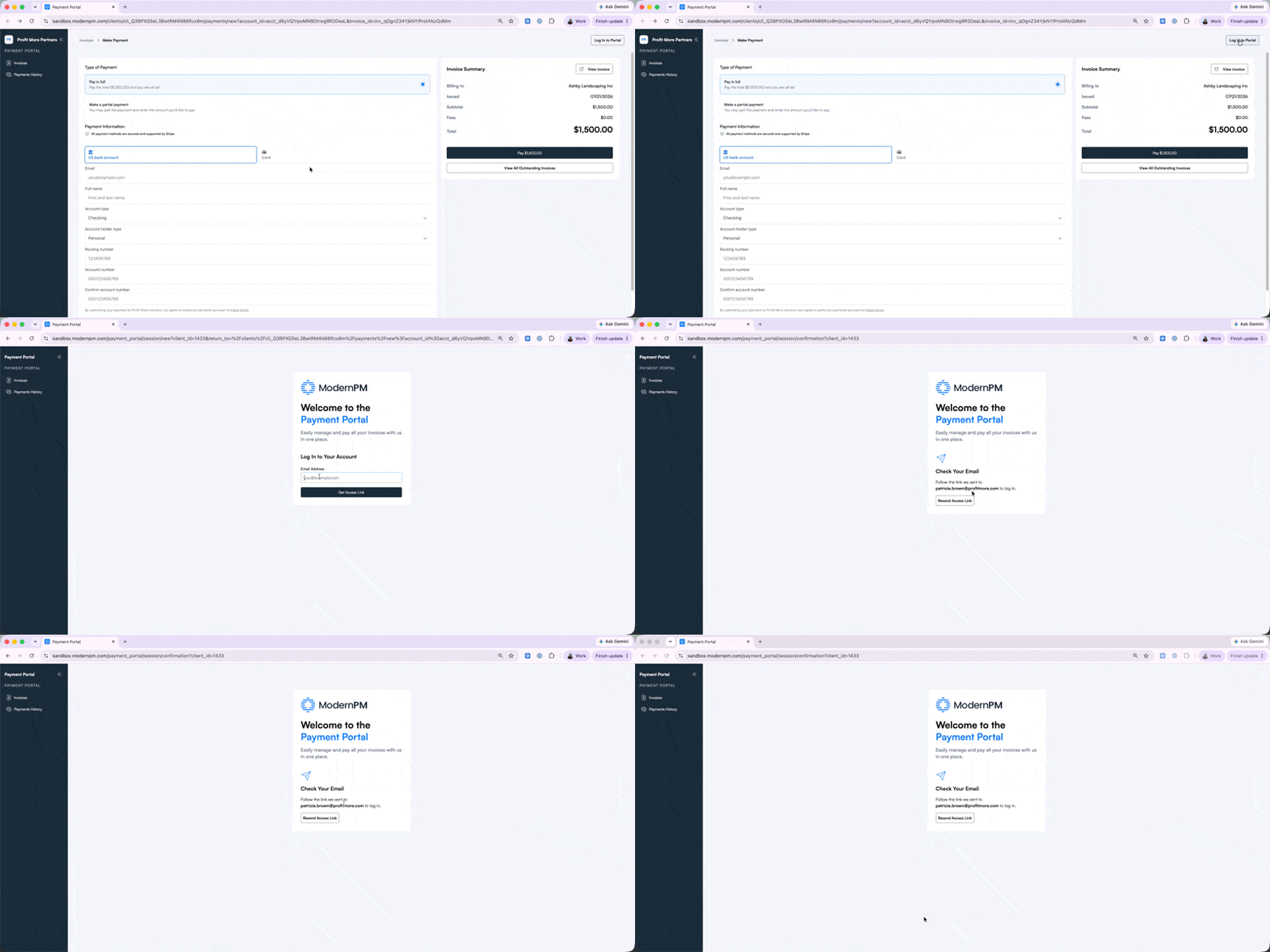
Once the Payment Portal is enabled for your account, you'll receive an invitation link by email as a billing contact. This link gives you your first access to the portal.
After that, you can also reach the portal any time you receive an invoice or statement. Clicking the link included with it takes you to the payment screen for that invoice, where you can choose to log in.
No separate username or password is needed. Each link is unique to you and provides secure access when you're ready to use it.
What You Can Do in the Portal
Below is a quick guide to the key actions available to you, along with step-by-step instructions for each.
View and pay outstanding invoices
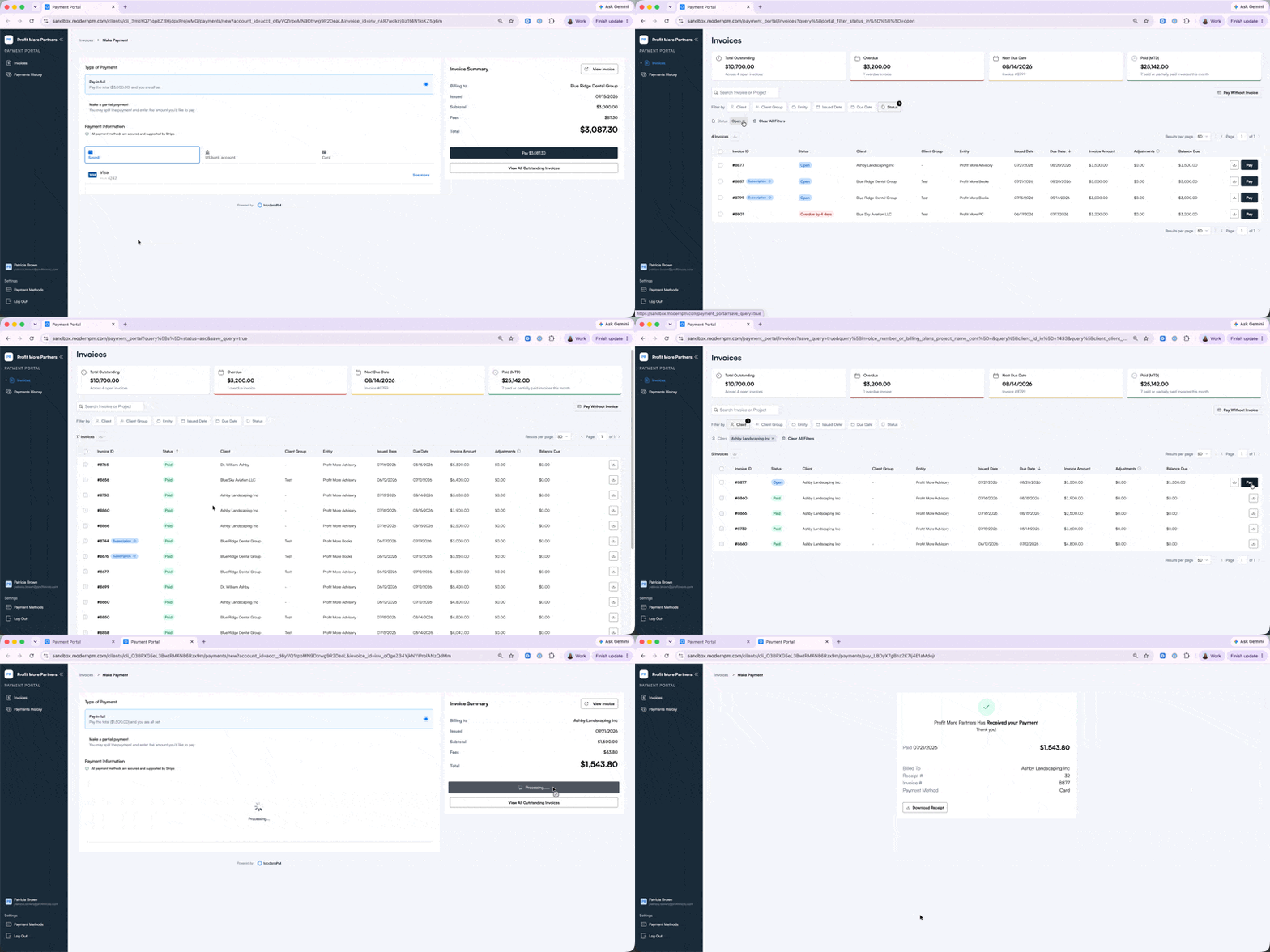
You can view all outstanding invoices across the accounts you manage and pay them directly from the portal.
- Open the Payment Portal using the link.
- Go to Invoices to see everything currently outstanding.
- Use the filters if you'd like to narrow down the list — for example, by date or account.
- Select an invoice and continue to payment.
Pay multiple invoices at once
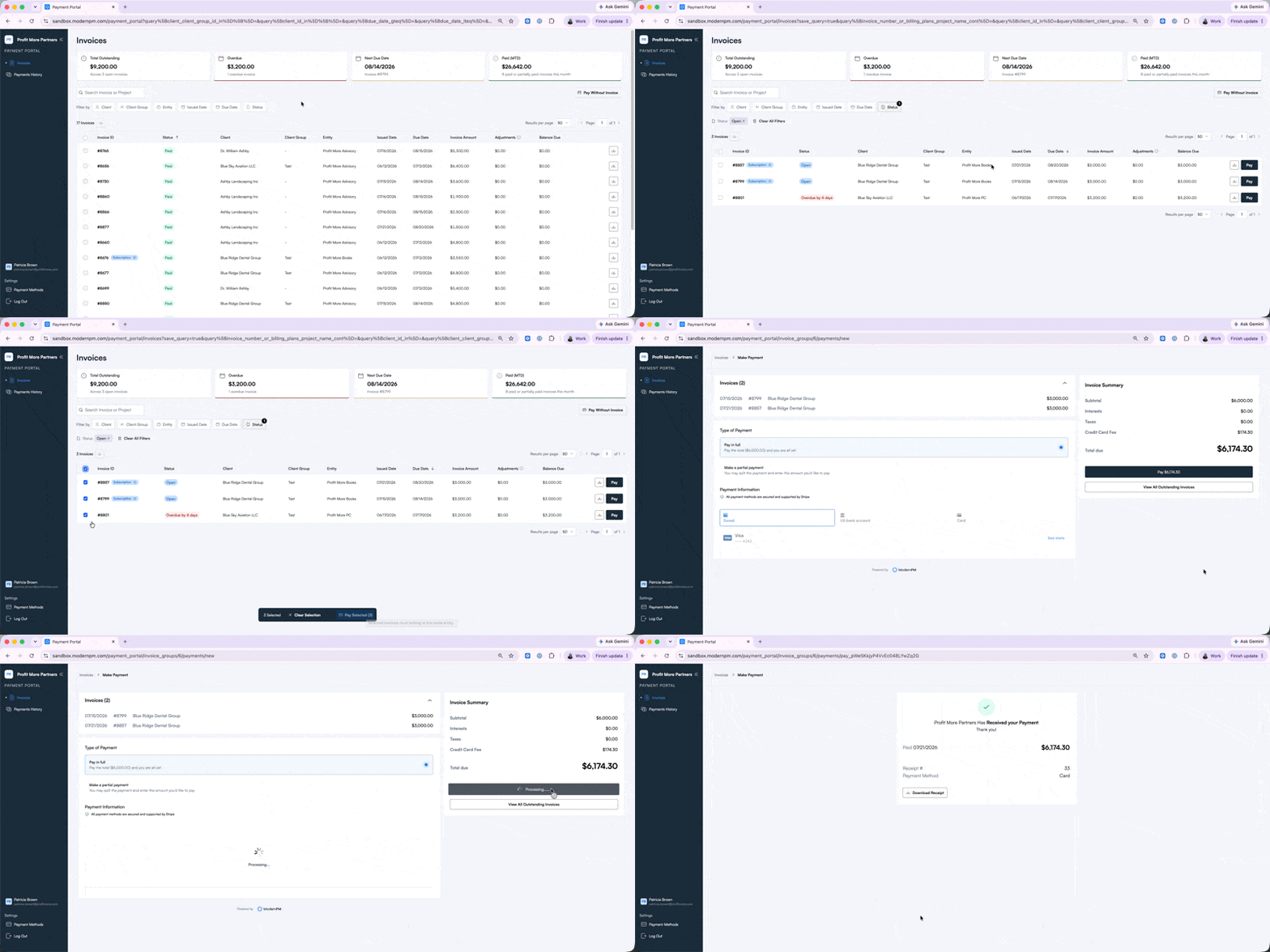
Several outstanding invoices can be paid together in a single transaction, rather than one at a time.
- Go to Invoices.
- Select the invoices you'd like to pay by marking them with the checkbox.
- Choose Pay Selected and complete the payment in one step.
Note: invoices for multiple accounts can be combined into one payment only if they belong to the same entity.
Make a payment without an invoice
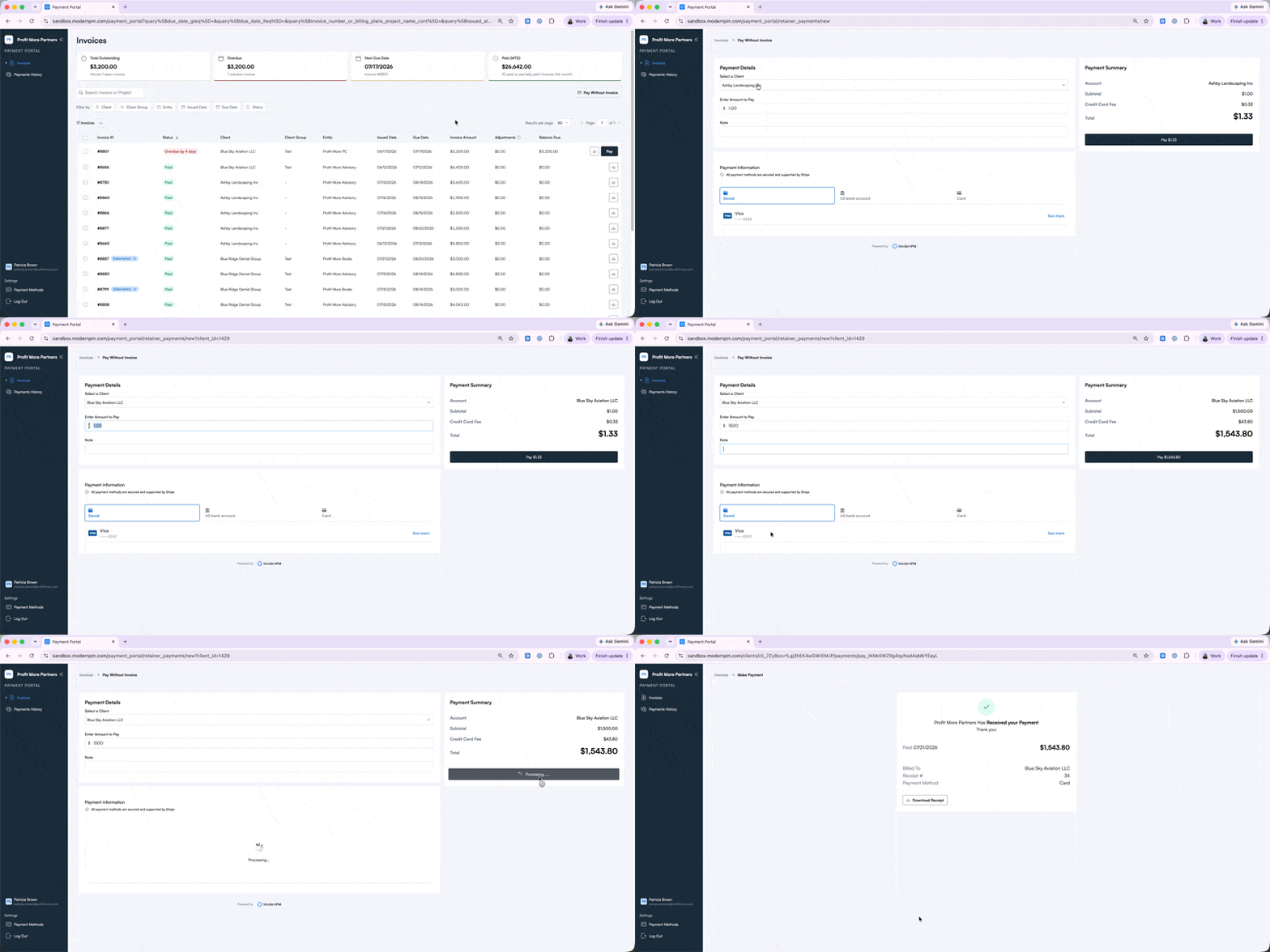
The portal also gives you a way to submit a payment even when there isn't an invoice to pay against — for example, an advance payment or a retainer.
- On the Invoices tab, click Pay Without Invoice.
- Enter your payment details, choose the amount and complete the transaction.
Manage your payment methods
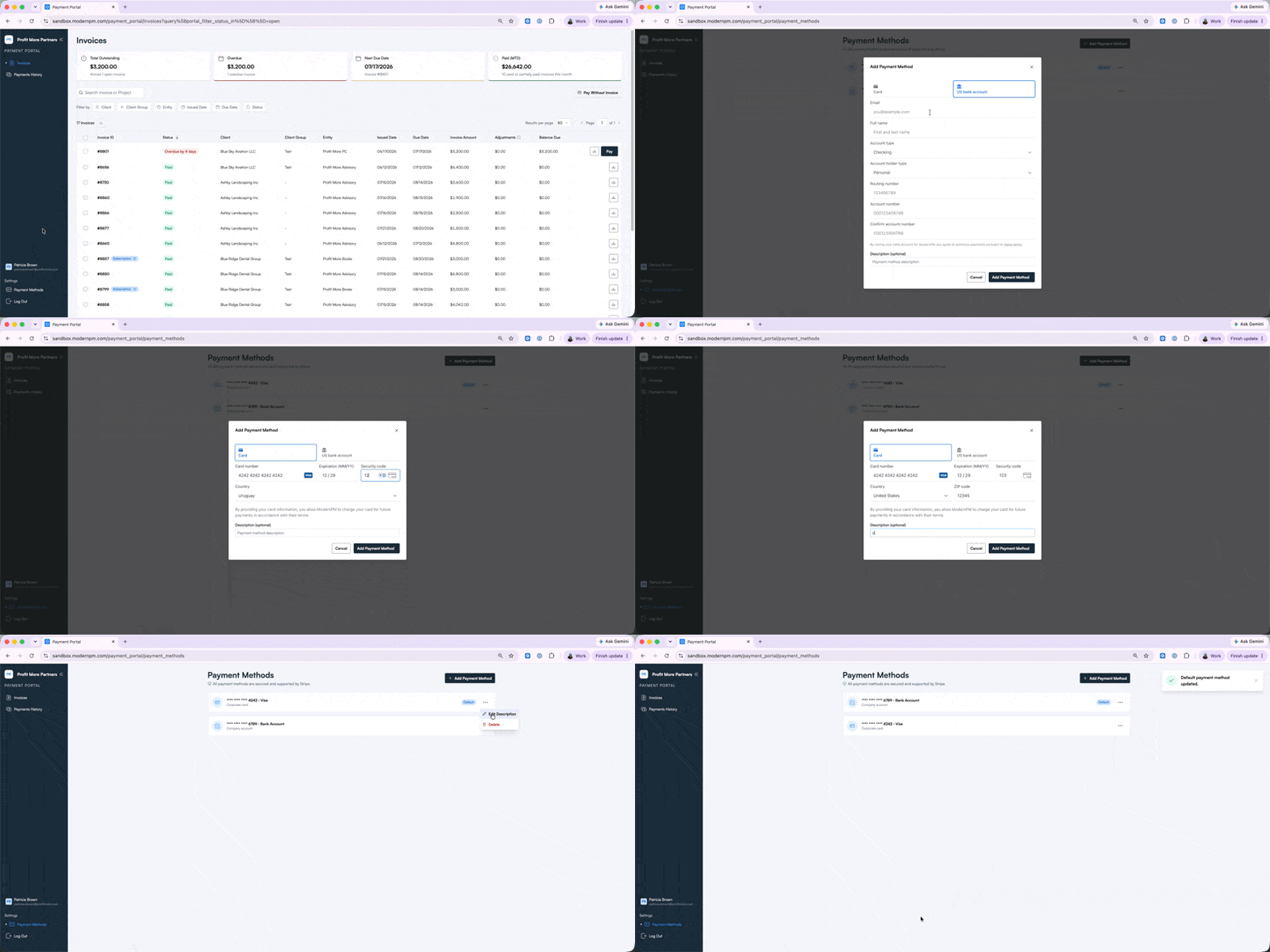
Your saved payment methods can be added, edited, or removed at any time, and you can set a default method for future payments.
- Go to Payment Methods.
- Add a new payment method, or select an existing one.
- Edit the description, set it as your default, or remove it whenever you like.
Review payment history and receipts
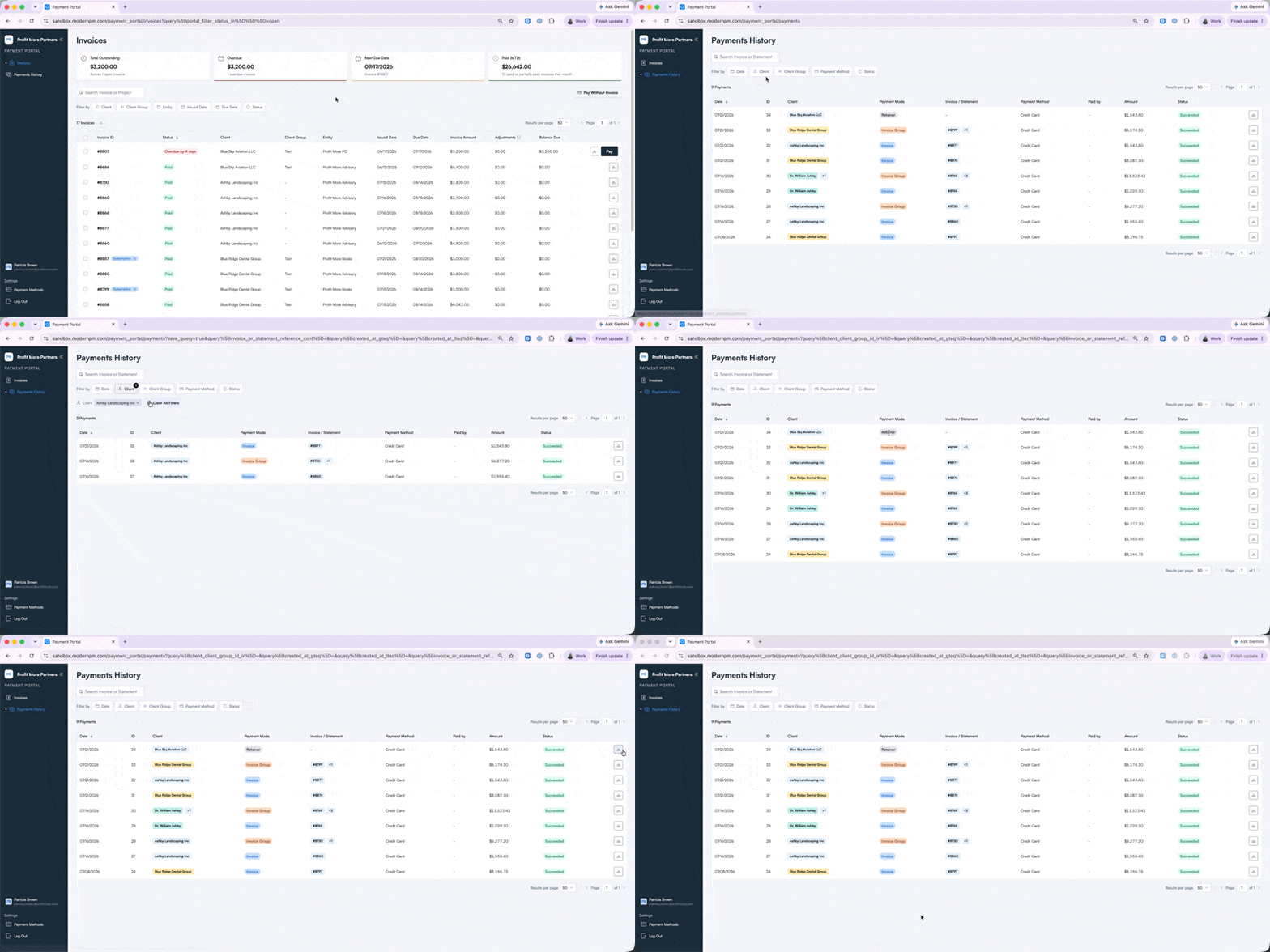
A full record of your past payments is available here, along with their status and receipts for completed transactions.
- Go to Payment History.
- Review past payments and their current status.
- Open the receipt for any completed payment.
If you don't have access to the Payment Portal yet, you're welcome to continue using your regular payment link to pay your invoices until it is available to you.